 WinkNotesHelp
Add WinkNotes MCP to Claude
Follow the steps below to connect WinkNotes to Claude.
Add manually
Claude cannot add a local MCP server from the desktop Settings page. Open the ~/.claude.json file.
Then find the "mcpServers" section.
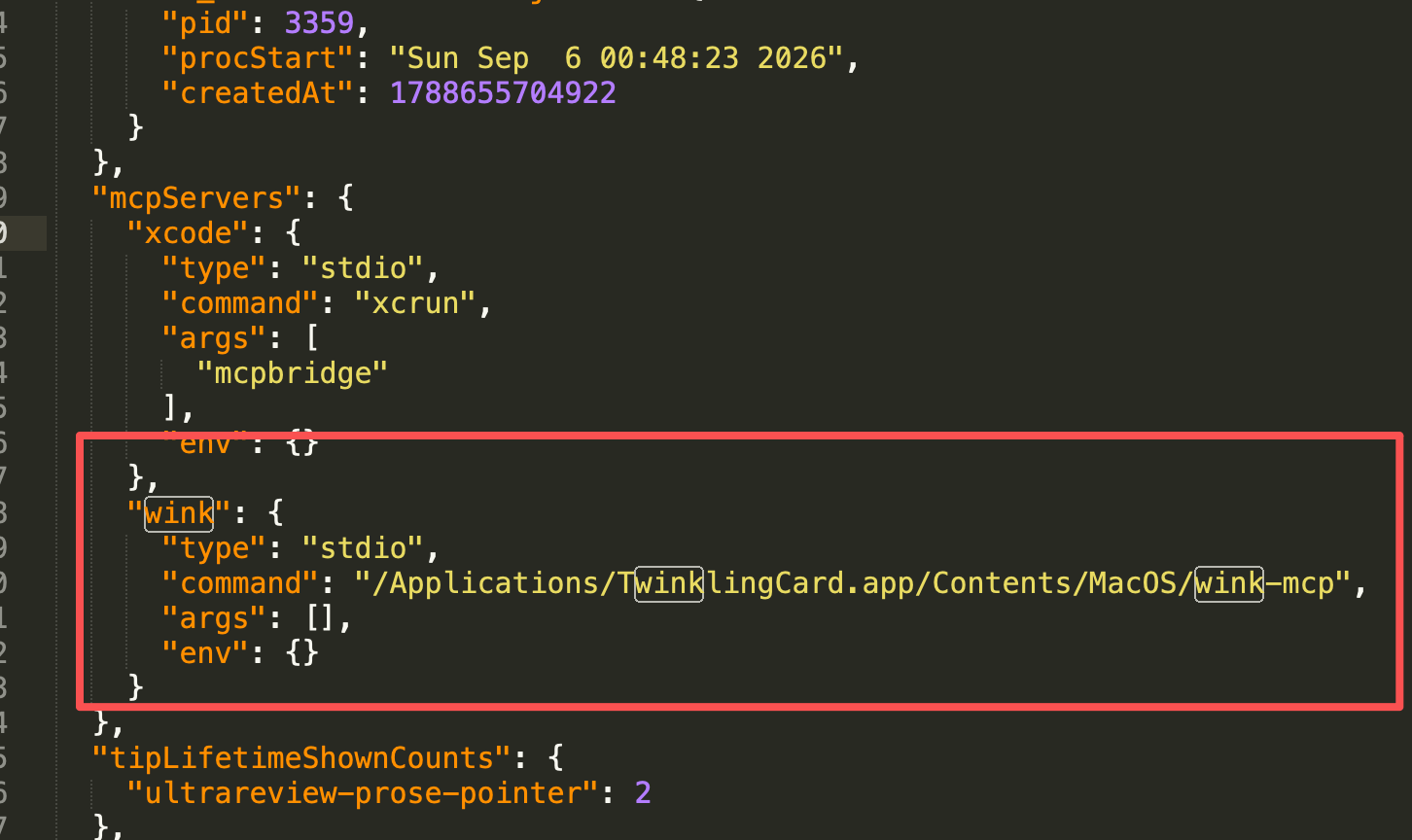
Add
"wink": {
  "type": "stdio",
  "command": "/Applications/TwinklingCard.app/Contents/MacOS/wink-mcp",
  "args": [],
  "env": {}
}
Save the file. If Claude is already open, quit Claude and reopen it.
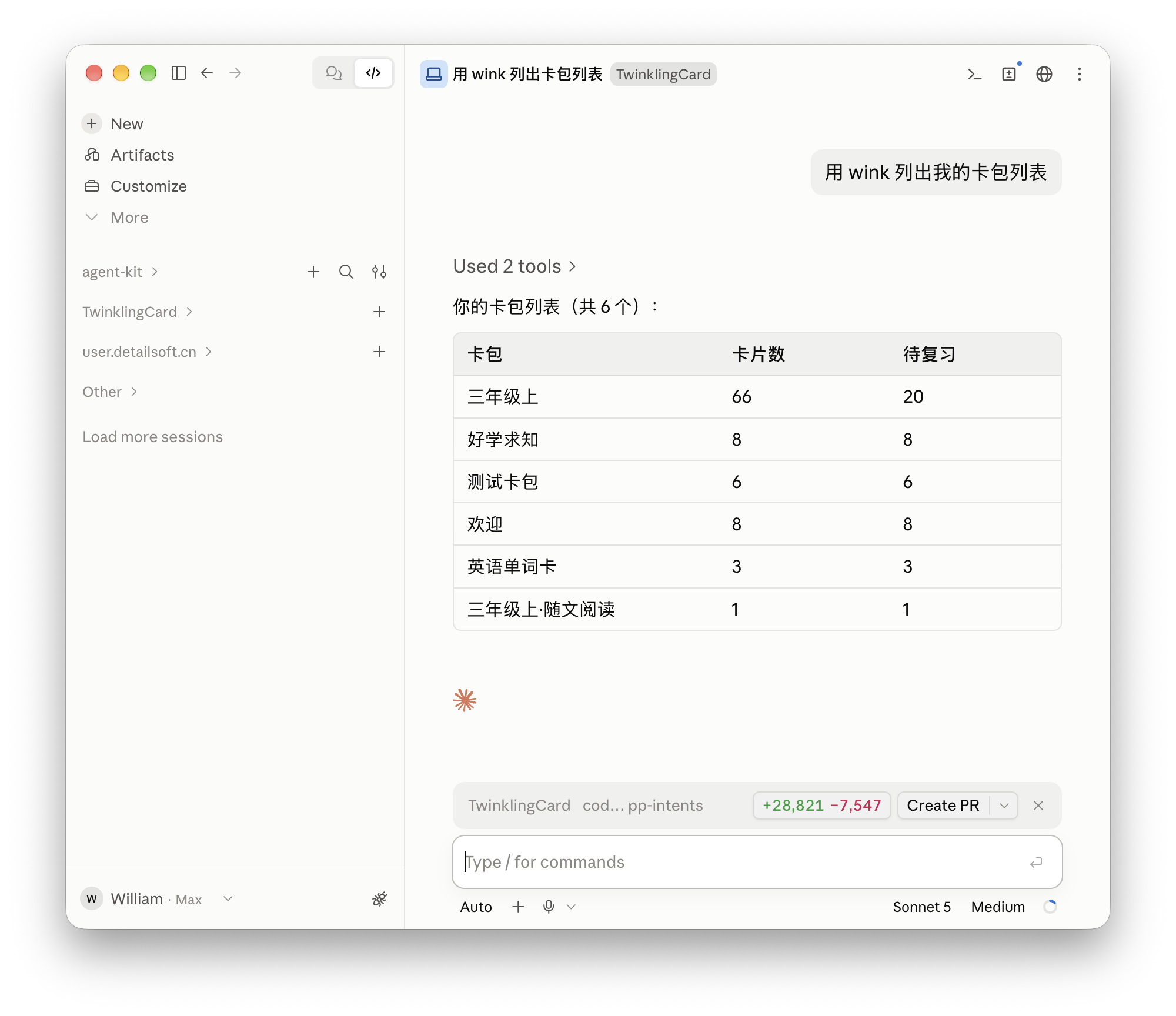
New task
Start the first prompt with “using wink to …”. Once the session has picked up wink, you can leave it out.
Add in chat
Open a new “New task” session and paste:
Please add this MCP server configuration:
"wink": {
  "type": "stdio",
  "command": "/Applications/TwinklingCard.app/Contents/MacOS/wink-mcp",
  "args": [],
  "env": {}
}
After about 30–60 seconds of thinking, it should tell you it is done.
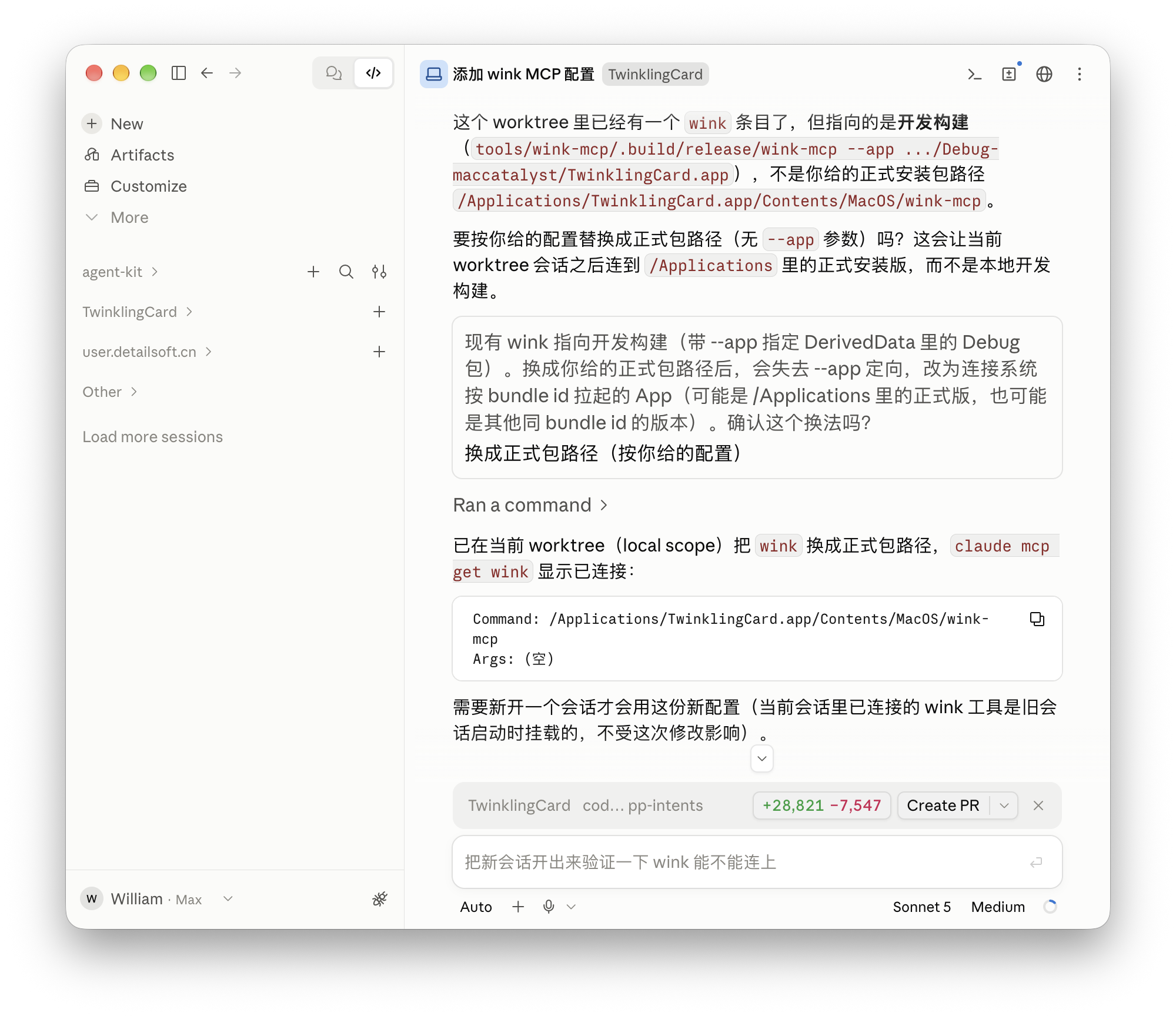
⚠️ Note: quit Claude and reopen it.
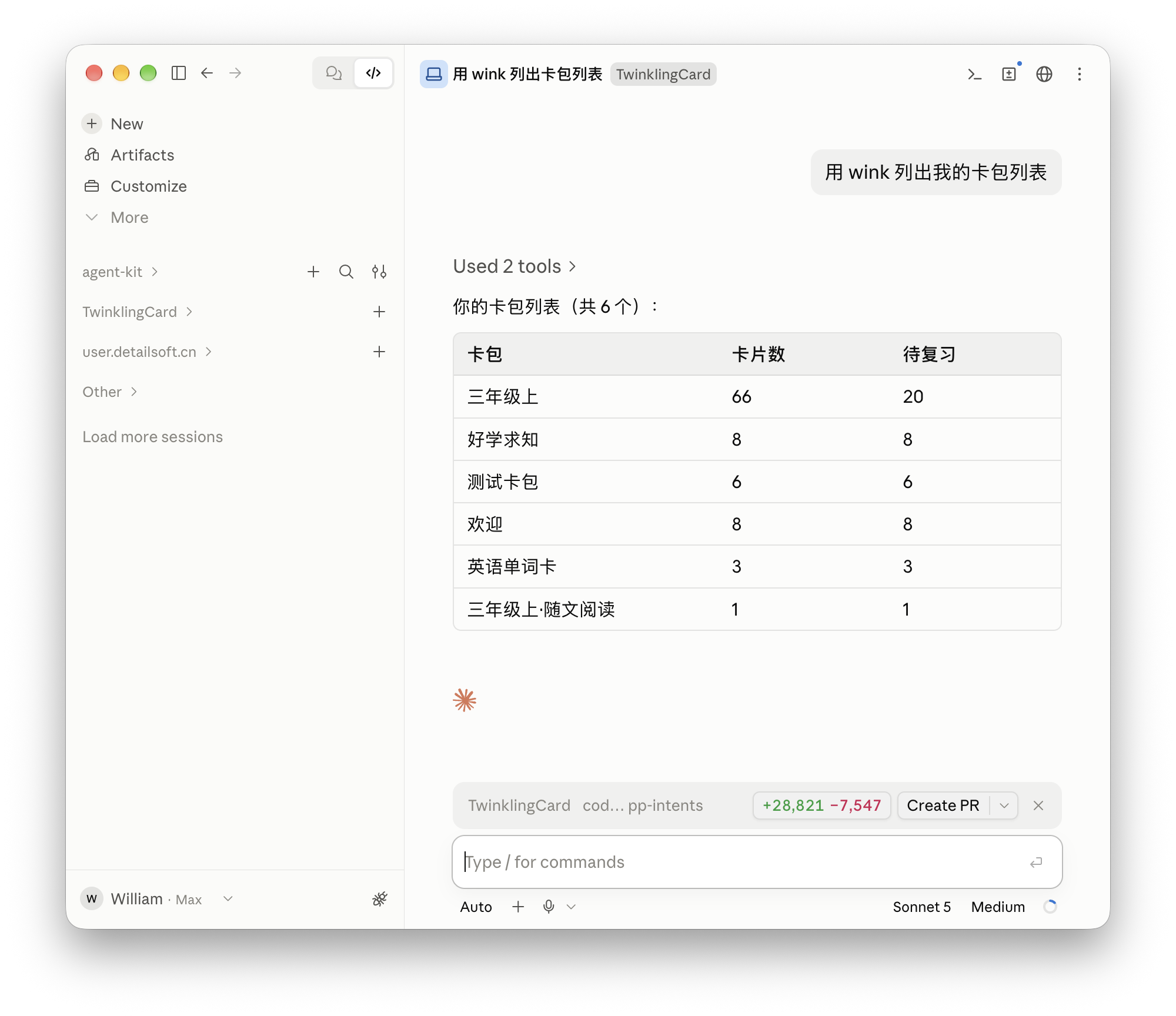
New task
Start the first prompt with “using wink to …”. Once the session has picked up wink, you can leave it out.